
The Email Tester lets you send a real test email through your current mailer configuration and immediately see whether delivery succeeded or failed.
Navigation: WP Admin → NimblyMail → Tools → Email Tester
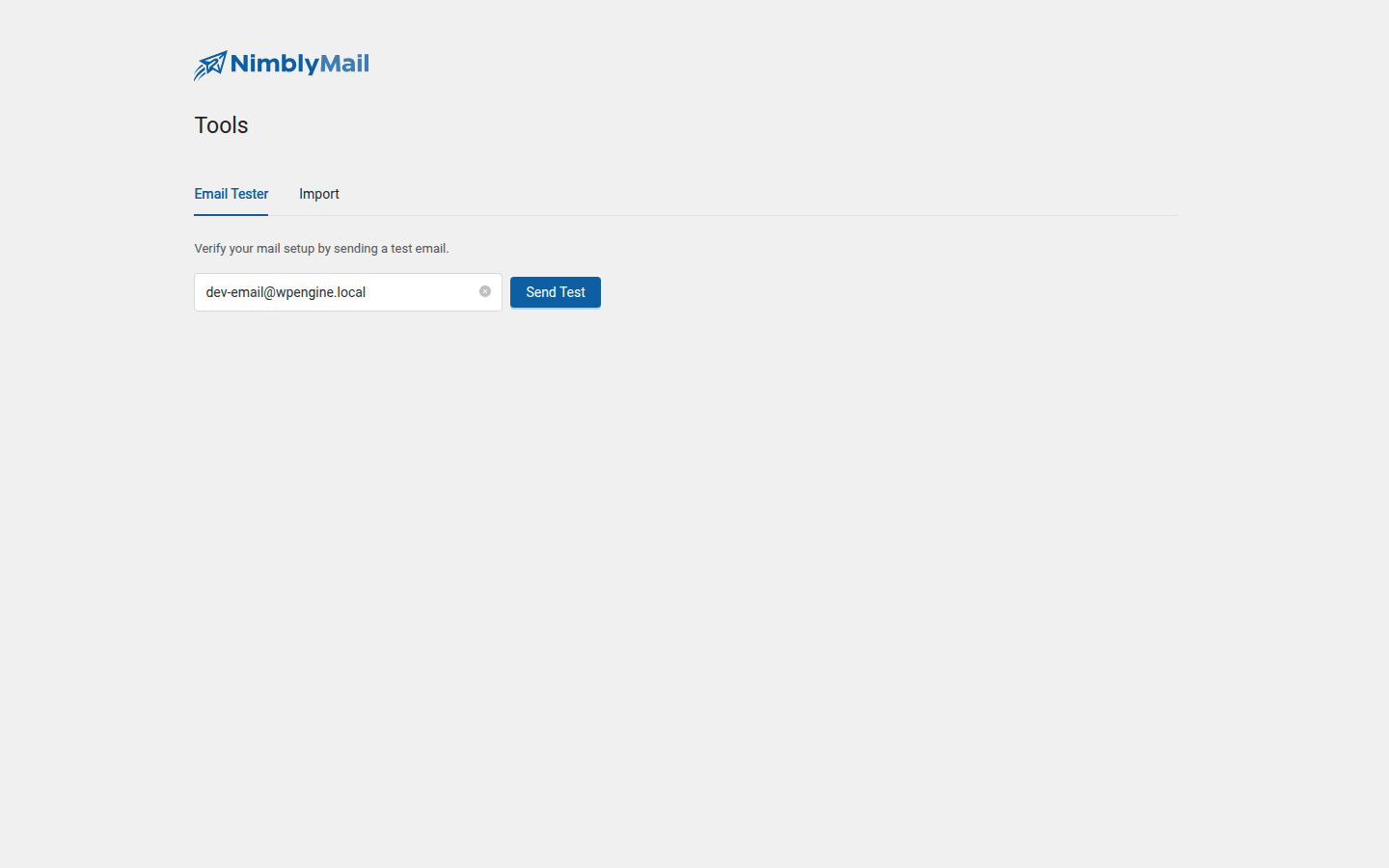
Sending a Test Email
- Navigate to
WP Admin → NimblyMail → Tools → Email Tester. - The Recipient Email field is pre-filled with your WordPress admin address. Replace it with any address you can check.
- Click Send Test or press Enter.
While the test runs, a “Connecting to mail server…” hint appears beneath the form to indicate that NimblyMail is actively communicating with the configured mail server or API.
Understanding the Result
Success
A green alert confirms the message was accepted. Check your inbox to confirm delivery. If the message does not arrive within a few minutes, check your spam folder — the email was sent successfully from WordPress but may have been filtered by the receiving mail provider.
Failure
A red alert shows the error message returned by the mail server or API. Two additional items appear:
- A hint directing you to
NimblyMail → Settingsto check your mailer configuration. - A Connection Log panel containing the full SMTP conversation or API error response.
The Connection Log expands automatically on failure. It shows the raw exchange between NimblyMail and the mail server, including every SMTP command and server reply. This is the most actionable starting point for diagnosing delivery problems.
Tip: Enable debug mode in
WP Admin → NimblyMail → Settings → Advancedto capture the full SMTP conversation in the Connection Log. Without debug mode the log may show only a high-level error message.
Common Failure Causes
| Symptom in Connection Log | Likely Cause |
|---|---|
Connection timed out |
The SMTP host or port is blocked by your server’s firewall. Try port 587 instead of 465, or contact your host. |
Authentication failed |
The username or password is incorrect. Re-enter credentials in WP Admin → NimblyMail → Settings. |
Certificate verify failed |
The mail server’s TLS certificate cannot be verified. Try switching encryption from SSL to TLS, or contact your SMTP provider. |
550 Sender not authorised |
The From Email address is not authorised to send through the configured mailer. Check your domain’s SPF and DKIM records. |
API key invalid |
The API key entered in Settings is incorrect or has been revoked. Generate a new key from your provider’s dashboard. |
Troubleshooting
If the test consistently fails after verifying your credentials, see Common Issues & Solutions for a broader diagnostic checklist.
You can also re-run the setup wizard from WP Admin → NimblyMail → Settings → Misc → Launch Setup Wizard to step through your configuration from the beginning.