
The setup wizard guides you through configuring NimblyMail from scratch. It launches automatically on first activation and can be re-opened any time from WP Admin > NimblyMail > Settings > Misc > Launch Setup Wizard.
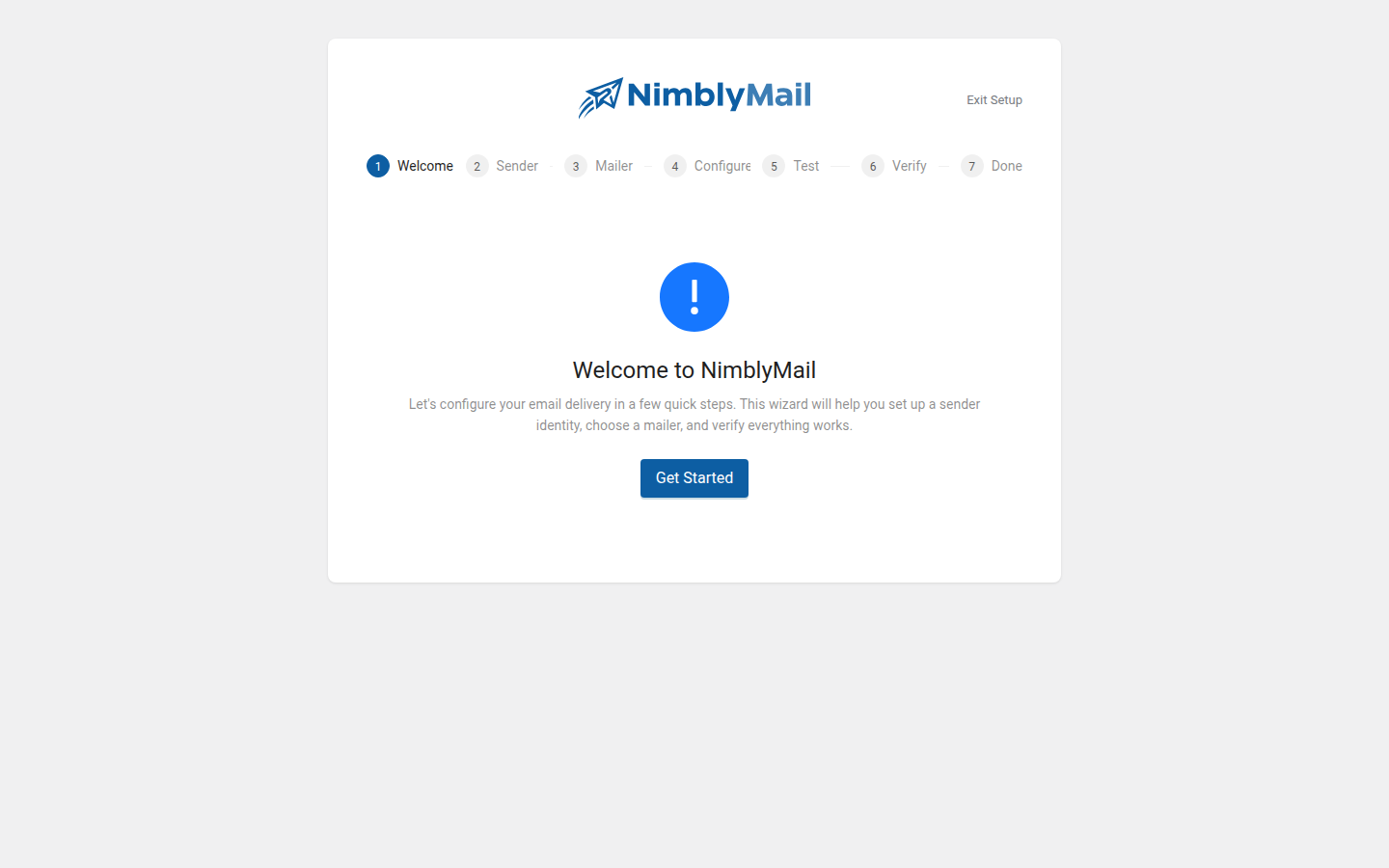
The wizard hides the WordPress admin menu and toolbar so you can focus entirely on the configuration steps. Click Exit Setup in the top-right corner at any point to return to the dashboard without losing progress.
Step 1 — Welcome
The first screen checks whether any supported SMTP plugins are currently installed and configured on your site.
When an existing plugin is detected
NimblyMail displays a card showing the detected plugin name and logo alongside two options:
- Import from [Plugin Name] — NimblyMail reads the existing plugin’s settings and imports the mailer type, sender identity, and any non-encrypted settings in one click. After a successful import the wizard skips to the Configure step (or the Test step if PHP Mail was imported) so you can supply any credentials that could not be transferred.
- Set Up Manually — ignore the detected plugin and configure NimblyMail from scratch starting at the Sender step.
Tip: Encrypted values such as passwords and API keys are stored in a format that NimblyMail cannot decrypt from another plugin. After importing, you will always need to re-enter those credentials manually on the Configure step.
When no existing plugin is detected
A single Get Started button takes you directly to the Sender step.
Step 2 — Sender
Configure the identity that appears on outgoing emails.
| Field | Description |
|---|---|
| From Email | The email address shown in the From header. Use an address on a domain you control and have authorised for sending. |
| From Name | The display name shown alongside the From Email, for example your site name or brand name. |
| Force From Email | When enabled, NimblyMail overrides any From Email set by WordPress core or other plugins and always uses the address you entered above. |
| Force From Name | When enabled, NimblyMail overrides any From Name set by other code and always uses the name you entered above. |
Click Next when you are happy with the sender identity. Click Back to return to the Welcome screen.
Tip: Enable both Force options if other plugins on your site (contact forms, WooCommerce, etc.) send mail with their own From addresses and you want all mail to go out from a single consistent identity.
Step 3 — Mailer
Choose how your site sends email. NimblyMail supports six providers:
| Mailer | Best For |
|---|---|
| PHP Mail | Quick testing on local environments. Not recommended for production as deliverability is poor. |
| Other SMTP | Any SMTP server — your host’s mail server, Mailgun, Postmark, SendGrid, or any provider with SMTP credentials. |
| Gmail / Google Workspace | Sites that send through a Gmail or Google Workspace account using OAuth (no password stored). |
| Amazon SES | High-volume senders with an AWS account. Low per-message cost at scale. |
| Resend | Developer-friendly email API with a generous free tier. |
| SendLayer | Transactional email service built for WordPress. |
Select a mailer card and click Next. If you select PHP Mail, the wizard skips the Configure step and goes directly to the Test step because PHP Mail requires no credentials.
Step 4 — Configure
Enter the credentials for the mailer you chose. This step is skipped automatically when PHP Mail is selected.
A Get your credentials link appears at the top of this step for providers that require an account or API key. Click it to open the provider’s documentation in a new tab.
The fields shown depend on your chosen mailer:
- Other SMTP — host, port, encryption, authentication toggle, username, password
- Gmail / Google Workspace — OAuth Client ID, Client Secret, and an authorisation flow to connect your Google account
- Amazon SES — Access Key ID, Secret Access Key, AWS region
- Resend — API key, sending domain
- SendLayer — API key
Fill in all required fields and click Save & Continue. NimblyMail saves the settings before advancing to the Test step. If saving fails, an error message appears and you remain on the Configure step to correct the inputs.
Tip: For detailed credential setup instructions for each provider, see the Email Providers section.
Step 5 — Test
Verify that your configuration delivers email correctly before finishing the wizard.
- The Recipient Email field is pre-filled with your WordPress admin email address. Change it to any address you can check.
- Click Send Test Email.
- NimblyMail attempts delivery and shows one of two outcomes:
Success
A green success result confirms the email was sent. Click Continue to proceed to the Done step, or click Send Another to test with a different recipient address.
Failure
A red error result shows the error message returned by the mail server or API. A Connection Log panel expands automatically below the result. The log contains the raw SMTP conversation or API response and is the most useful starting point for diagnosing delivery problems.
From a failure result you can:
- Click Try Again to attempt delivery again after adjusting settings
- Click Go Back to return to the Configure step and correct credentials
- Click Skip to complete the wizard without a successful test (not recommended for production)
Tip: If the connection log shows an authentication error, double-check the username and password on the Configure step. If it shows a connection timeout, verify the SMTP host and port and confirm your server allows outbound connections on that port.
Step 6 — Done
The final screen confirms that NimblyMail is configured and ready. It displays a summary table showing the selected mailer, From Email, and From Name.
Three buttons give you quick access to the most common next destinations:
- Go to Dashboard — the main NimblyMail overview page
- View Settings — the full settings screen to adjust any option
- View Email Logs — the email log table to monitor delivery
Re-opening the Wizard
The wizard is available at any time after activation. Navigate to WP Admin > NimblyMail > Settings, scroll to the Misc section, and click Launch Setup Wizard. Running the wizard again does not reset your existing settings — it simply pre-fills each step with your current configuration so you can review or update individual values.