
Amazon Simple Email Service (SES) is a cloud-based email sending service from AWS. It is the most cost-effective option for high-volume sending — US$0.10 per 1,000 emails after the free tier — and offers excellent deliverability when your domain is properly configured.
Prerequisites
- An AWS account (aws.amazon.com)
- A verified sending domain or email address in Amazon SES
- An IAM user with permission to call
ses:SendRawEmail
Setup
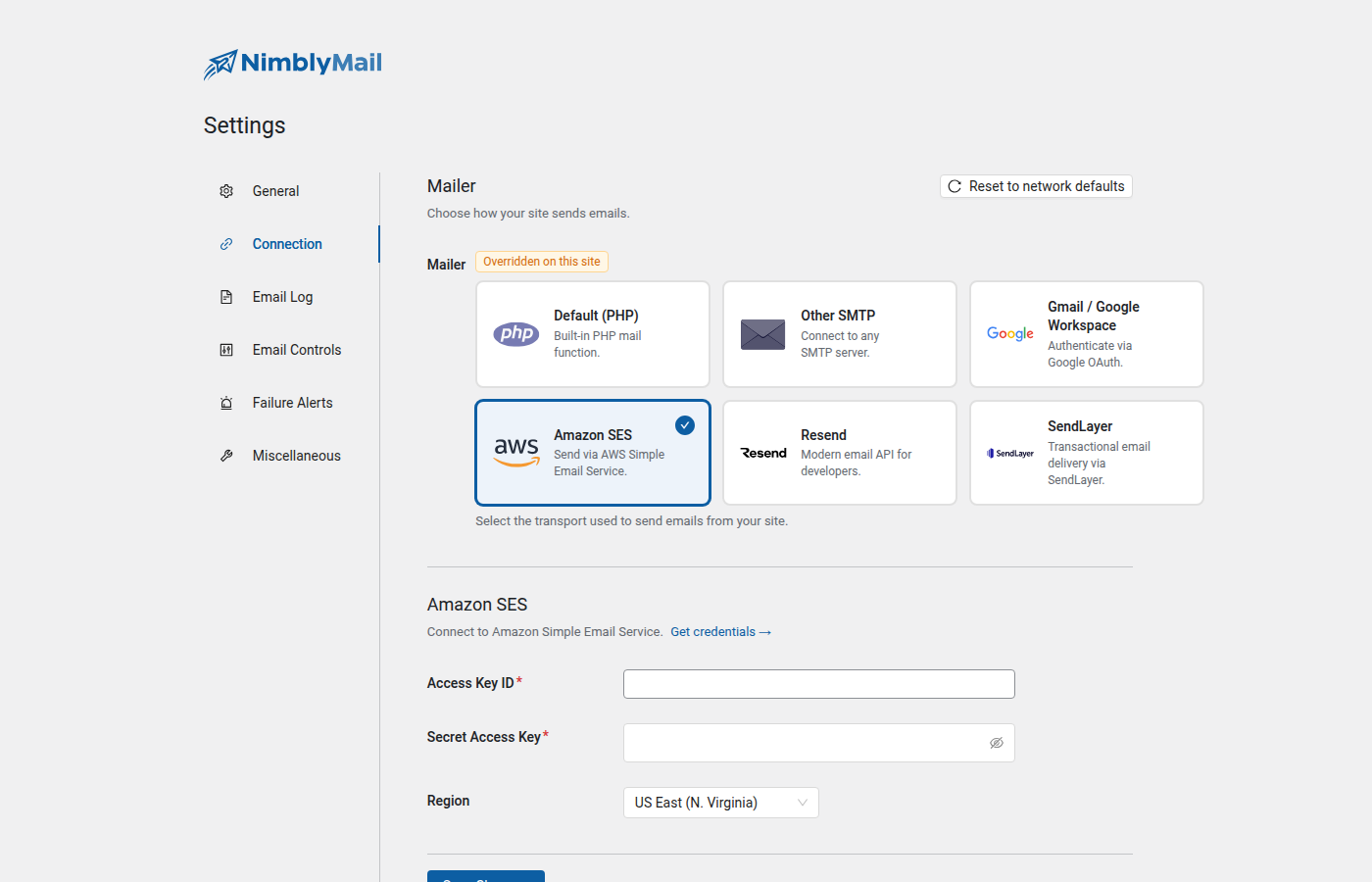
Navigate to WP Admin → NimblyMail → Settings → Connection → Amazon SES.
Step 1 — Log into AWS and open SES
Sign in to the AWS Management Console and navigate to Simple Email Service (SES). Make sure you are in the correct region — SES resources (verified identities, sending quotas) are region-specific.
Step 2 — Verify your sending domain or email address
In the SES console, go to Verified identities and click Create identity.
Domain verification (recommended)
Select Domain, enter your domain name, and follow the instructions to add the CNAME and TXT records to your DNS. Domain verification also enables DKIM signing, which significantly improves deliverability.
Email address verification (simpler, less flexible)
Select Email address, enter the address you want to send from, and click the confirmation link that AWS sends to that address. Email address verification does not provide DKIM signing for your domain.
Tip: Verify your domain rather than just an email address. Domain-level verification lets you send from any address at that domain and automatically enables DKIM, which is required for good deliverability.
Wait for the identity status to show Verified before proceeding.
Step 3 — Create an IAM user
Navigate to IAM in the AWS console. Go to Users and click Create user.
Give the user a name (e.g., nimblymail-smtp-ses) and click Next. On the permissions screen, select Attach policies directly and click Create policy.
In the policy editor, use the JSON editor and paste:
{
    "Version": "2012-10-17",
    "Statement": [
        {
            "Effect": "Allow",
            "Action": "ses:SendRawEmail",
            "Resource": "*"
        }
    ]
}
Click Next, give the policy a name (e.g., NimblyMailSESSendOnly), and create it. Return to the user creation flow, attach the new policy, and complete the user creation.
Tip: Granting only
ses:SendRawEmailfollows the principle of least privilege. The IAM user can send email but cannot access any other AWS resources or SES management functions.
Step 4 — Generate access keys
On the IAM user’s detail page, go to the Security credentials tab and click Create access key. Select Application running outside AWS and click Next. Copy the Access key ID and Secret access key — you will need both.
Warning: The secret access key is shown only once. Copy it now and store it securely. If you lose it, you must create a new access key.
Step 5 — Select your AWS region
Note the region you are using in SES. The region is shown in the AWS console URL and in the region selector at the top of the page (e.g., us-east-1, eu-west-1). You must select the same region in NimblyMail — credentials from one region will not work against another.
Step 6 — Enter credentials in NimblyMail
In WP Admin → NimblyMail → Settings → Connection → Amazon SES, enter:
- Access Key ID — the key ID from Step 4
- Secret Access Key — the secret key from Step 4
- Region — the AWS region where your SES identity is verified
Click Save Settings.
Step 7 — Test delivery
Navigate to WP Admin → NimblyMail → Tools → Email Tester and send a test email to confirm delivery.
Field Reference
| Field | Description |
|---|---|
| Access Key ID | AWS IAM access key ID. Stored encrypted. |
| Secret Access Key | AWS IAM secret access key. Stored encrypted. |
| Region | AWS region for SES. Must match the region where your sending identity is verified. |
Available Regions
| Region Code | Location |
|---|---|
us-east-1 |
US East (N. Virginia) |
us-east-2 |
US East (Ohio) |
us-west-1 |
US West (N. California) |
us-west-2 |
US West (Oregon) |
eu-west-1 |
Europe (Ireland) |
eu-central-1 |
Europe (Frankfurt) |
Tip: Choose the region closest to your web server’s location to minimize latency, as long as your SES identity is verified in that region.
Sandbox Mode vs. Production
New AWS accounts start with SES in sandbox mode. In sandbox mode:
- You can only send to verified email addresses or domains
- Sending quotas are low (200 messages per day, 1 message per second)
This is fine for testing but not for a live site. To move out of sandbox mode, go to SES → Account dashboard in the AWS console and click Request production access. Fill in the form and submit — AWS typically responds within one business day.
Warning: If your site sends email to unverified addresses while in sandbox mode, SES will reject those messages. Always request production access before going live.
Constants (wp-config.php)
define( 'NIMBLYMAIL_SES_ACCESS_KEY_ID',     'AKIAIOSFODNN7EXAMPLE' );
define( 'NIMBLYMAIL_SES_SECRET_ACCESS_KEY', 'wJalrXUtnFEMI/K7MDENG/bPxRfiCYEXAMPLEKEY' );
define( 'NIMBLYMAIL_SES_REGION',            'us-east-1' );