
Authenticate via Microsoft OAuth and send through smtp.office365.com:587 using XOAUTH2. Works with personal Outlook.com / Hotmail accounts and Microsoft 365 (work and school) mailboxes alike.
NimblyMail uses a centralized OAuth proxy (oauth.nimblymail.com) so you do not need to register your own Azure application. One click and you’re connected.
When to use Outlook / Microsoft 365
- You already have a Microsoft 365 mailbox or personal Outlook.com account and want WordPress to send "From" that address.
- You want strong deliverability without a dedicated transactional email service.
- You want to avoid storing a long-lived SMTP password in WordPress.
Limits and gotchas
- Daily send limits. Microsoft 365 mailboxes have built-in send limits (typically 10,000 recipients per 24 hours; lower for personal Outlook.com). For high-volume transactional mail, use a dedicated service like Amazon SES or Resend instead.
- SMTP AUTH must be enabled for the mailbox in your Microsoft 365 admin center. New Microsoft 365 tenants disable SMTP AUTH globally; an admin needs to enable it in Microsoft 365 admin center > Active users > [user] > Manage email apps > Authenticated SMTP, or via the
Set-CASMailboxPowerShell cmdlet. - Personal Outlook.com mailboxes generally support SMTP AUTH out of the box.
- The mailbox must be licensed for Exchange Online (Business Basic / Standard / Premium / Enterprise plans).
Setup
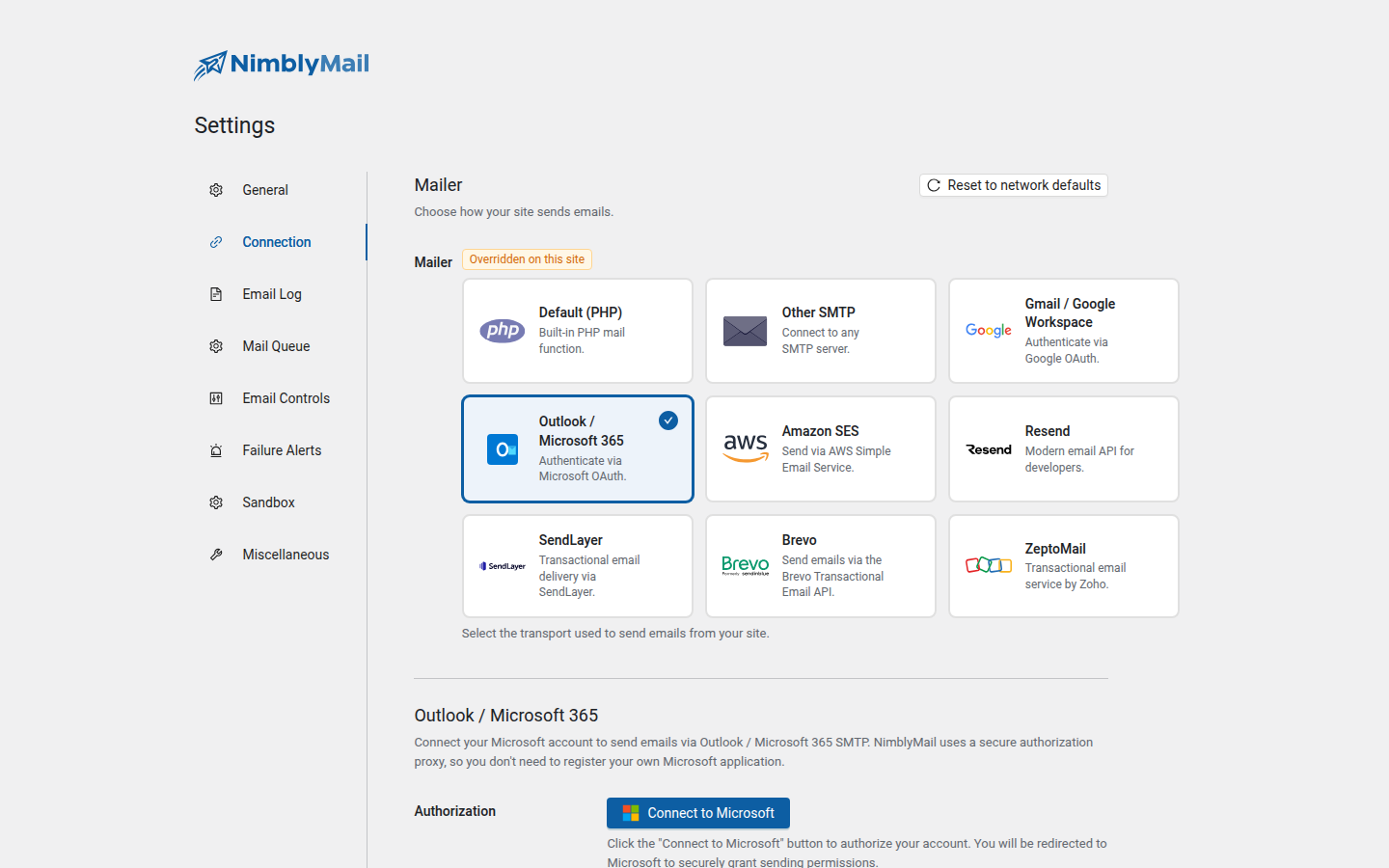
- Go to NimblyMail > Settings > Connection.
- Select the Outlook / Microsoft 365 card.
- Click Connect to Microsoft. You will be redirected to Microsoft’s login page.
- Sign in with the mailbox you want to send from and approve the requested permissions:
https://outlook.office.com/SMTP.Send— required to authenticate against Microsoft’s SMTP server.offline_access— required so NimblyMail can refresh the access token automatically.openidandUser.Read— to identify the authorized account.
- You will be redirected back to NimblyMail. The card now shows Connected with a Disconnect button.
- Confirm the From Email under Settings > General matches the connected mailbox address.
NimblyMail signs every refresh request to the OAuth proxy with a per-install HMAC secret so a leaked refresh token alone cannot be replayed.
What gets stored
| Field | Storage |
|---|---|
| Access token | DB (encrypted at rest, AES-256-CBC + HMAC-SHA256) |
| Refresh token | DB (encrypted at rest) |
Install identity (install_id + install_secret) |
DB (encrypted at rest) — used to sign refresh requests against the OAuth proxy |
| Authorized email | DB (used as the SASL user= field for SMTP XOAUTH2) |
Disconnecting
Go to Settings > Connection > Outlook / Microsoft 365 and click Disconnect. NimblyMail signs a /revoke request to the OAuth proxy and then clears the local tokens. The Microsoft account itself is untouched — you can also revoke from Microsoft Account > Privacy > Apps and services that can access your data.
Troubleshooting
"535 5.7.139 Authentication unsuccessful, SmtpClientAuthentication is disabled for the Tenant"
Your tenant has SMTP AUTH disabled at the org level. An admin must run:
Set-TransportConfig -SmtpClientAuthenticationDisabled $falseor enable it for a specific mailbox via the Microsoft 365 admin center.
"535 5.7.139 … is disabled for the user"
SMTP AUTH is disabled at the mailbox level. In Microsoft 365 admin center, go to Active users > select user > Mail > Manage email apps and tick Authenticated SMTP.
Token refresh failure: "Refresh token does not belong to this install"
This means the install identity stored in WordPress has drifted from the proxy’s record (e.g. salt rotation, restored backup, or manual disconnect/reconnect on a different machine). Disconnect and reconnect from the Connection settings to provision a fresh identity.