
Navigation: Network Admin → NimblyMail
Once the plugin is network activated, super admins get a dedicated NimblyMail menu in the Network Admin with three pages: Dashboard, Sites, and Settings.
Network Dashboard
Navigation: Network Admin → NimblyMail → Dashboard
The dashboard aggregates delivery metrics across every sub-site on the network:
- Sent (24h) / Failed (24h) — totals across all sub-sites over the last 24 hours.
- Sent (7d) / Failed (7d) — totals over the last seven days.
- Top failing sites (24h) — lists sub-sites whose failure rate is highest, so super admins can spot mail-routing issues before individual site admins report them.
- All sites — per-site summary showing each sub-site’s active mailer and its sent/failed counts.
Click Refresh in the top-right to re-query the metrics. The dashboard caches its aggregates so Network Admin stays fast, and how a refresh is served depends on the size of the network:
- Up to 50 sub-sites — the metrics are recalculated immediately and the new figures appear straight away.
- More than 50 sub-sites — recalculating is handed to a background job that works through the network in batches. The dashboard keeps showing the last known figures and displays a Refreshing in background… badge, updating itself automatically once the job finishes. This keeps Network Admin responsive instead of making you wait on a request that walks every sub-site.
If the badge instead reads Background updates unavailable, the background job runner (Action Scheduler) is not running, so the figures shown are the last ones successfully calculated.
Network Sites
Navigation: Network Admin → NimblyMail → Sites
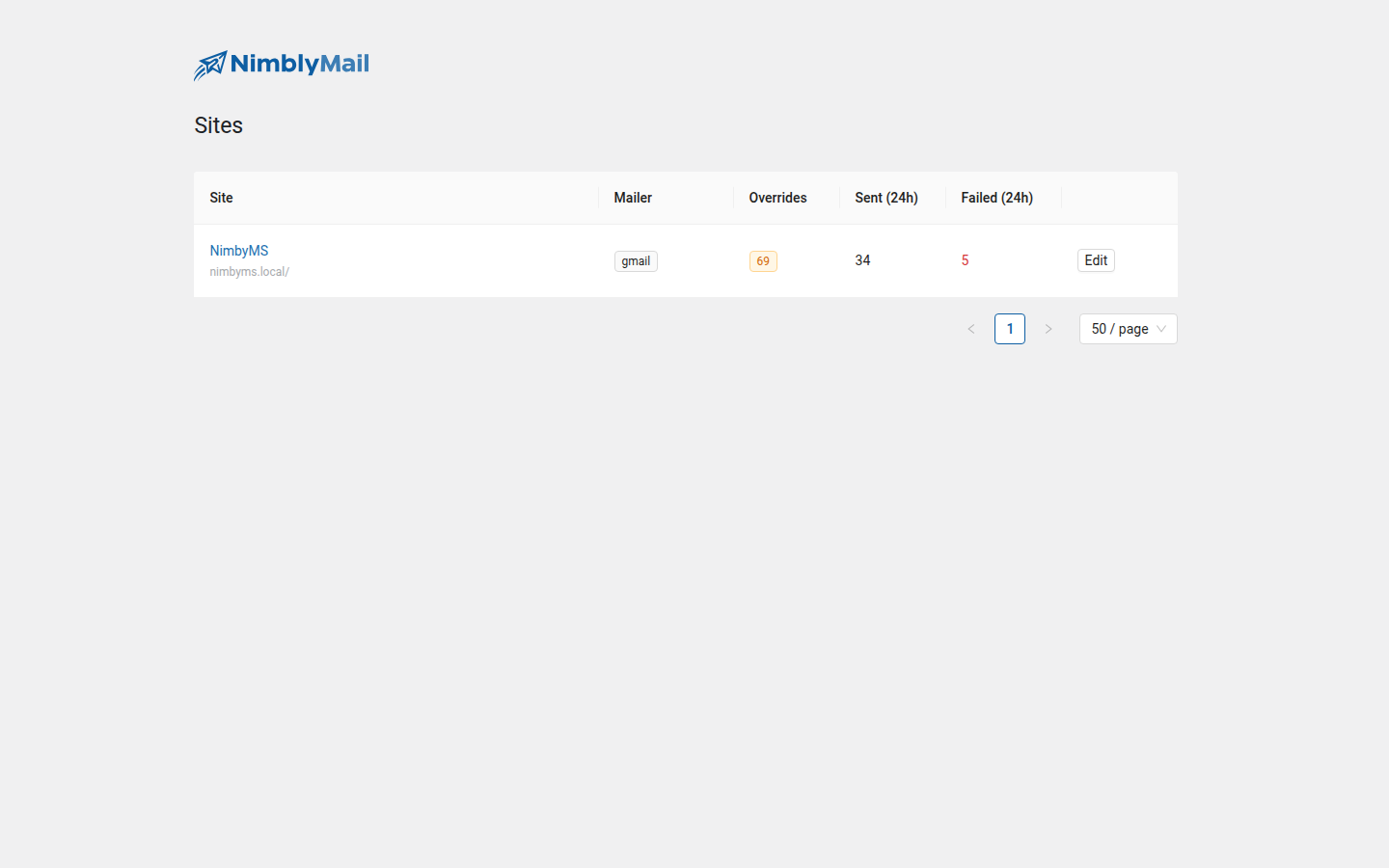
The Sites page is a searchable table of every sub-site on the network. Each row shows:
- Site — the site title and URL. Click the title to open the sub-site’s admin.
- Mailer — which transport the sub-site is currently using (inherits from network unless overridden).
- Overrides — how many fields the sub-site has explicitly overridden.
- Sent (24h) / Failed (24h) — recent delivery counts.
- Edit — opens the per-site override editor for super admins.
Per-Site Override Editor
Clicking Edit on any sub-site row opens the per-site override editor. This view is identical in layout to the regular settings page but edits the selected sub-site’s overrides from the network admin side — useful for super admins who want to configure or fix a sub-site without switching blogs.
Fields that are still inheriting from the network show an Inherited from network pill. Typing a value or toggling a switch creates an override for that field on that sub-site; other fields continue to inherit.
Network Settings
Navigation: Network Admin → NimblyMail → Settings
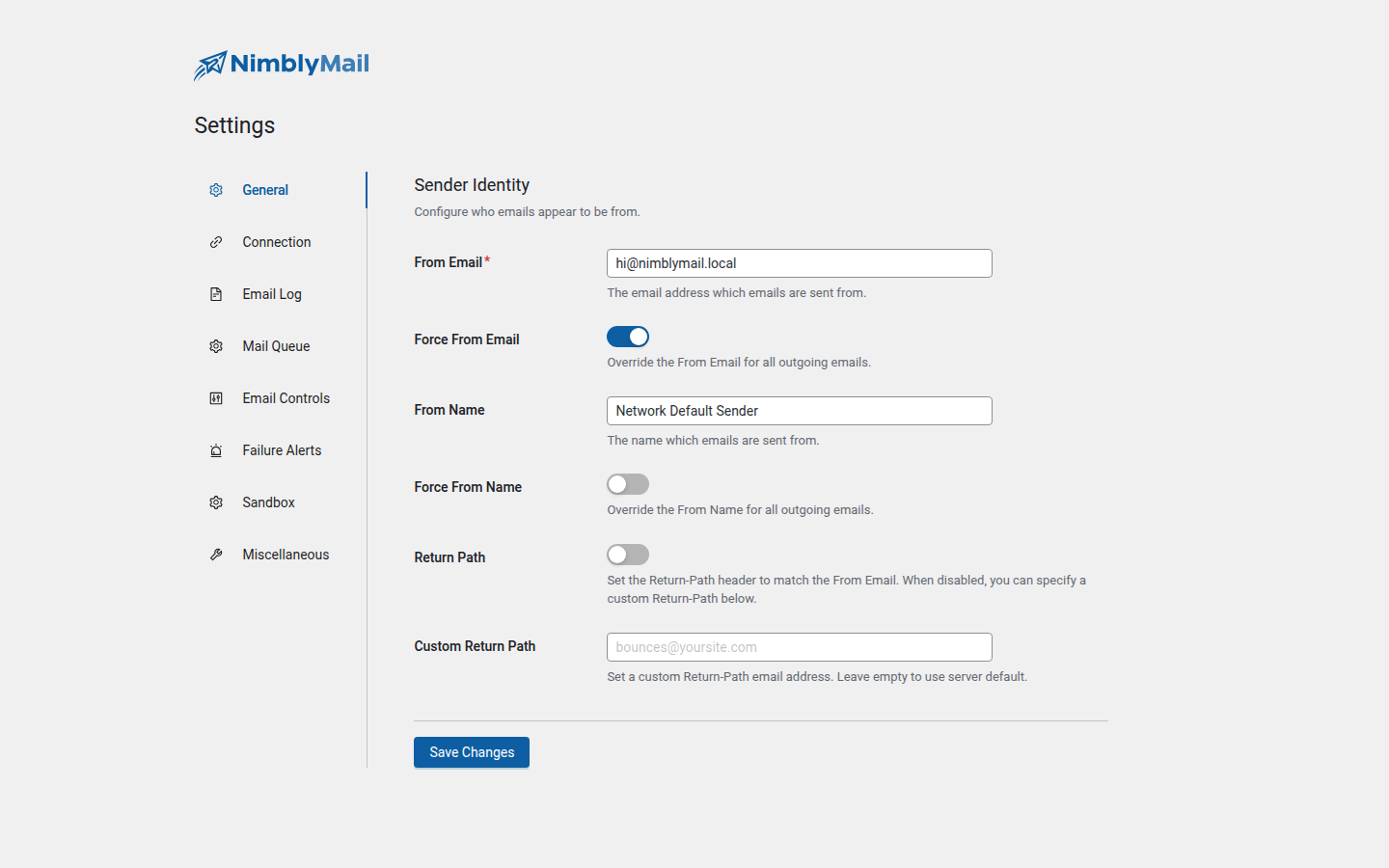
Network Settings is where super admins configure the network-wide defaults. The editor has the same tabs as the regular settings page — General, Connection, Email Log, Email Controls, Alerts, Misc — but every value you save here is stored as a network default that every sub-site inherits until it overrides the field.
Tip: Configure your SMTP transport here once as the network default. Every sub-site inherits the connection automatically. Sub-sites only need to be touched if they require a different From address, a different mailer, or their own credentials.
What Stays Per-Site
Even on multisite, each sub-site has its own:
- Email log (
wp_<blog_id>_nimblymail_logstable) — logs are never pooled across sites. - Setup wizard completion flag — each sub-site can run or skip the wizard independently.
- Dashboard view — sub-site admins see only their own site’s data.
Super admins see the network-level aggregates only under Network Admin; the per-site dashboard view still exists for every sub-site’s own admin.