
The Import Settings tool migrates your email configuration from another WordPress SMTP plugin into NimblyMail. It reads the source plugin’s stored settings, shows you a preview of what will be imported, and applies them with a single click.
Navigation: WP Admin → NimblyMail → Tools → Import
Tip: Import is also available on the Welcome step of the setup wizard. If NimblyMail detects a supported plugin during first-run setup, it offers a one-click import button before you begin manual configuration.
Supported Plugins
| Plugin | What Gets Imported |
|---|---|
| WP Mail SMTP | Mailer selection, From Email, From Name, SMTP host/port/encryption, username, API keys (non-encrypted) |
| Fluent SMTP | Mailer selection, From Email, From Name, SMTP host/port/encryption, username, API keys (non-encrypted) |
| Easy WP SMTP | Mailer selection, From Email, From Name, SMTP host/port/encryption, username, API keys (non-encrypted) |
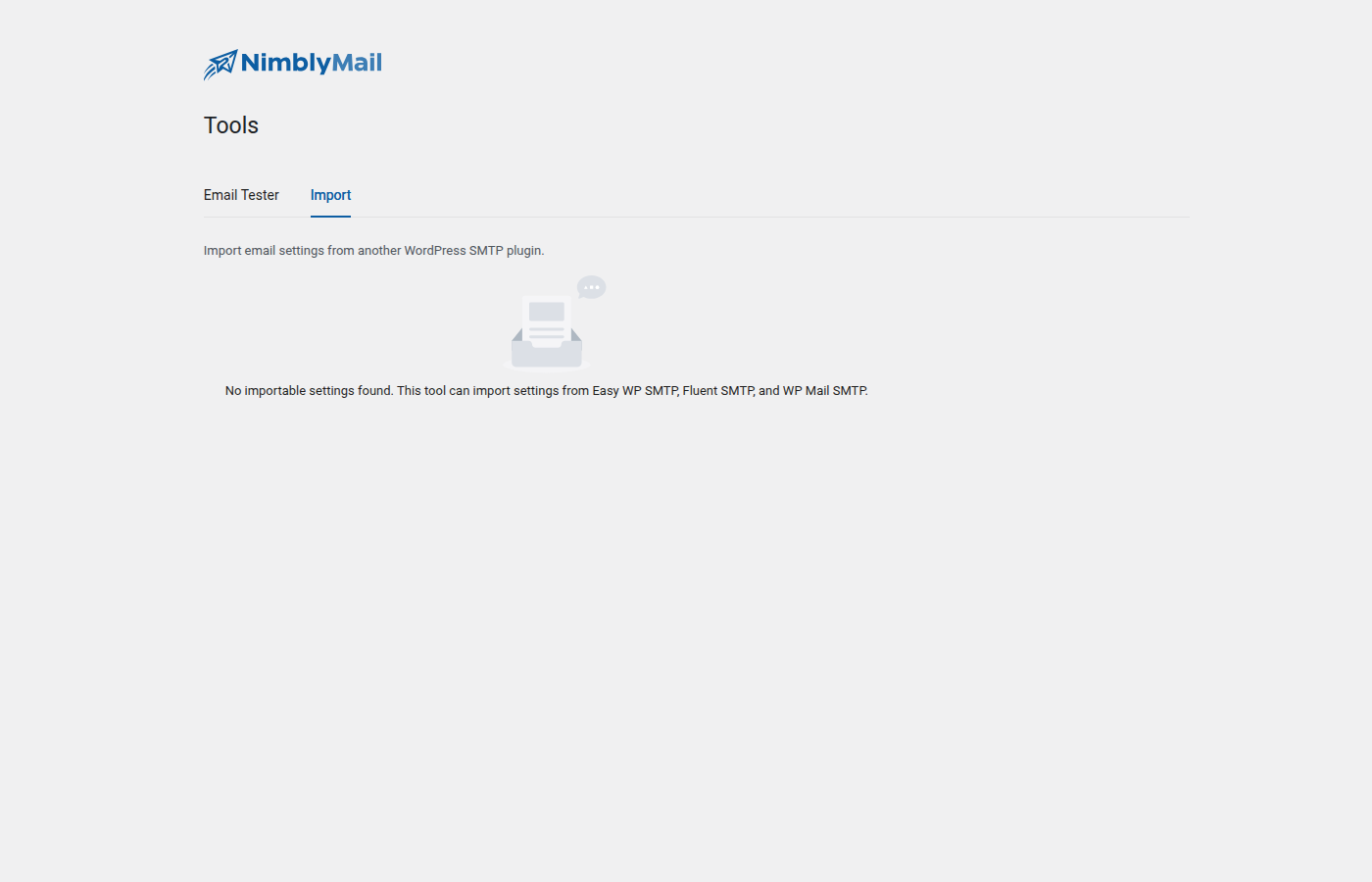
NimblyMail detects which of these plugins are currently installed and active. Only plugins that are both installed and have stored settings appear as import options. If none are found, the Import tab shows an empty state message.
What Gets Imported
The importer transfers:
- Sender identity — From Email, From Name, and Force options
- Mailer selection — the active email provider (SMTP, Gmail, SES, Resend, SendLayer, or PHP Mail)
- Non-sensitive credentials — SMTP hostname, port, encryption type, username, API endpoint URLs, AWS region, Gmail Client ID
Credentials That Cannot Be Imported
Passwords and secret keys stored by other plugins are encrypted with that plugin’s own encryption key. NimblyMail cannot decrypt them.
The following credential types always require manual re-entry after import:
- SMTP passwords
- Gmail OAuth Client Secret and stored OAuth tokens
- Amazon SES Secret Access Key
- Resend API keys
- SendLayer API keys
- Any field whose name contains “password”, “secret”, “key”, “token”, or “api”
When the preview shows any of these fields, they display as •••••••• to indicate the value cannot be read. After confirming the import you will be directed to WP Admin → NimblyMail → Settings to enter those values manually.
Step-by-Step Import
Step 1 — Navigate to the Import Tab
Go to WP Admin → NimblyMail → Tools and click the Import tab.
NimblyMail fetches the list of installed plugins with importable settings. Each detected plugin appears as a card showing the plugin name, logo, and a brief description of what will be imported.
Step 2 — Select a Plugin
Click Import on the plugin card you want to migrate from.
NimblyMail fetches a preview of the settings it will import from that plugin. A modal dialog opens while the preview loads.
Step 3 — Review the Preview
The preview modal shows a table of all settings grouped by category (for example, “Mail” and “Smtp”). Each row displays the setting name and its current value. Sensitive values are masked as ••••••••.
If any settings cannot be fully imported, a yellow warning banner lists the affected fields and explains why (typically because the value is encrypted).
Review the preview to confirm the settings look correct before proceeding.
Step 4 — Confirm the Import
Click Import Settings in the modal footer. NimblyMail applies the settings and closes the modal.
A result alert appears below the import cards:
- Green (success) — all importable settings were applied. If warnings were listed in the preview, a prompt appears directing you to
WP Admin → NimblyMail → Settingsto enter the missing credentials manually. - Red (error) — the import failed. The error message describes the problem. Verify that the source plugin is still active and try again.
Step 5 — Enter Missing Credentials
If the result includes warnings, navigate to WP Admin → NimblyMail → Settings and enter the credentials that could not be imported (passwords, API keys, secrets). Save the settings and then send a test email from WP Admin → NimblyMail → Tools → Email Tester to confirm delivery works.
Import During Setup Wizard
When the setup wizard detects a supported plugin on the Welcome step, it presents the same one-click import experience without the preview step. After a successful import the wizard automatically advances to the appropriate next step:
- If the imported mailer is PHP Mail, the wizard skips to the Test step.
- For all other mailers, the wizard goes to the Configure step so you can enter the credentials that could not be imported.