
Navigation: WP Admin → NimblyMail → Settings → Email Log
Email logging gives you a complete record of every outgoing email. You can review delivery status, inspect message content, resend failed messages, and diagnose delivery problems without guessing.
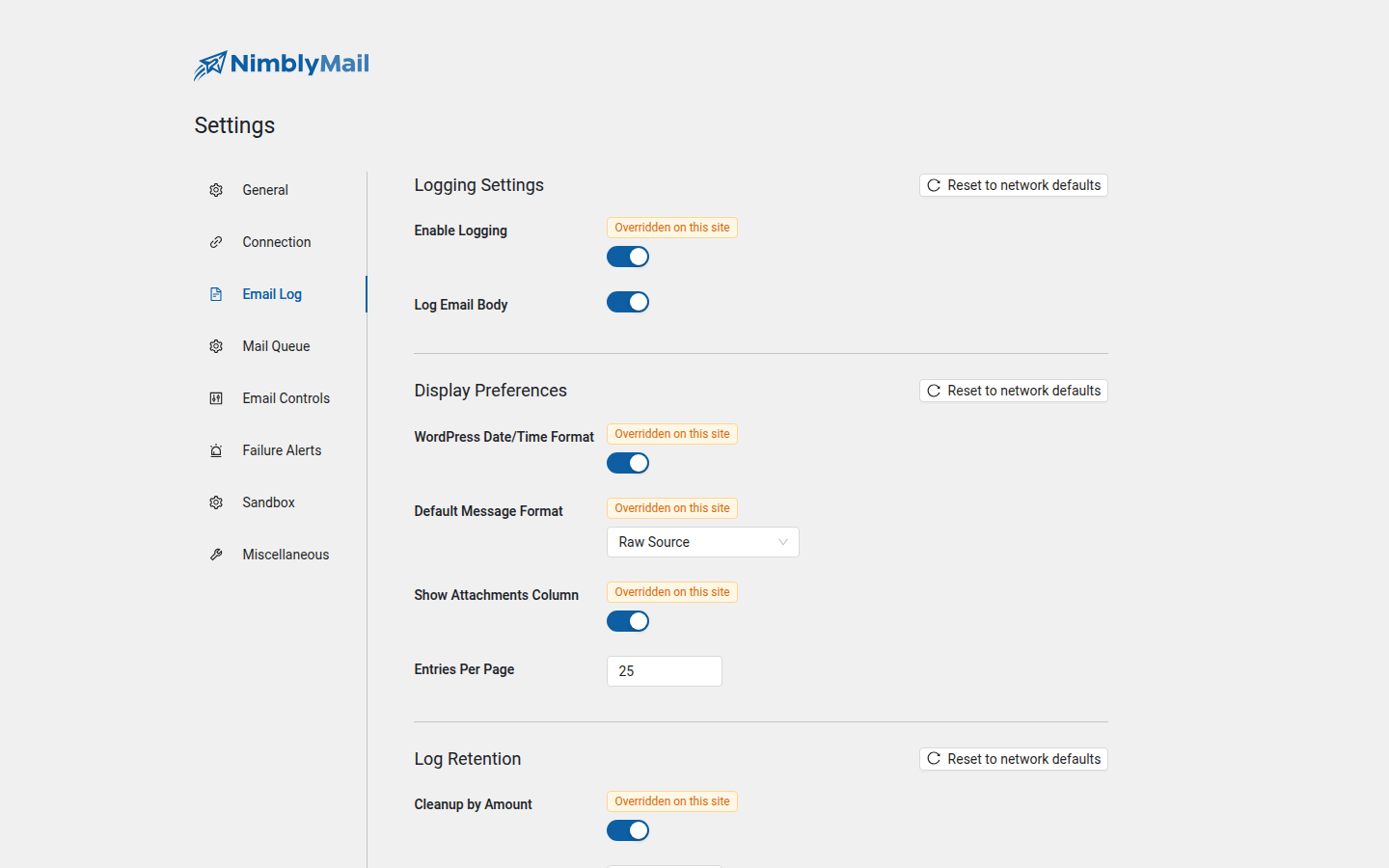
Logging Settings
| Field | Description |
|---|---|
| Enable Logging | Master toggle. Turn logging on or off entirely. |
| Log Email Body | When enabled, stores the full email body (HTML and plain text). Disable to reduce database usage. |
Disable Log Email Body on high-volume sites where storage is a concern. Metadata (recipient, subject, status, duration) is always logged regardless of this setting.
Display Preferences
These settings control how log entries appear in the log viewer.
| Field | Description |
|---|---|
| WordPress Date/Time Format | Use your site’s configured date and time format instead of the NimblyMail default. |
| Default Message Format | How the email body is displayed: HTML (rendered), Raw (source), or JSON. |
| Show Attachments Column | Display a column in the log table showing attachment file names and counts. |
| Entries Per Page | Number of log entries shown per page. Accepts values between 5 and 100. |
Log Retention
Configure one or both cleanup methods to keep the database size manageable.
| Field | Description |
|---|---|
| Cleanup by Amount | Automatically delete the oldest log entries when the total count exceeds the limit. |
| Maximum Logs | The maximum number of log entries to keep. Visible only when Cleanup by Amount is enabled. |
| Cleanup by Time | Automatically delete log entries older than a specified number of days. |
| Delete After (Days) | The retention period in days. Visible only when Cleanup by Time is enabled. |
Tip: Enable both retention methods for comprehensive cleanup. For example, keep a maximum of 5,000 entries and delete anything older than 90 days. Cleanup runs hourly in the background.
Default retention floor: until you interact with either cleanup method on this screen at least once, NimblyMail automatically deletes log entries older than 90 days so a site nobody has configured can’t grow the log table without bound. Toggling a cleanup method and saving — even switching it back off before you save — disables the default floor for that site; your explicit choice is respected from then on. Saving the section without touching either method does not count, since only changed fields are sent. Resetting this section clears your explicit choice along with the settings, so the floor comes back. On a multisite network, a super admin can also disable the floor network-wide by doing the same on the equivalent screen in Network Admin.