
Navigation: WP Admin > NimblyMail > Settings > Email Log
Email logging gives you a complete record of every outgoing email. You can review delivery status, inspect message content, resend failed messages, and diagnose delivery problems without guessing.
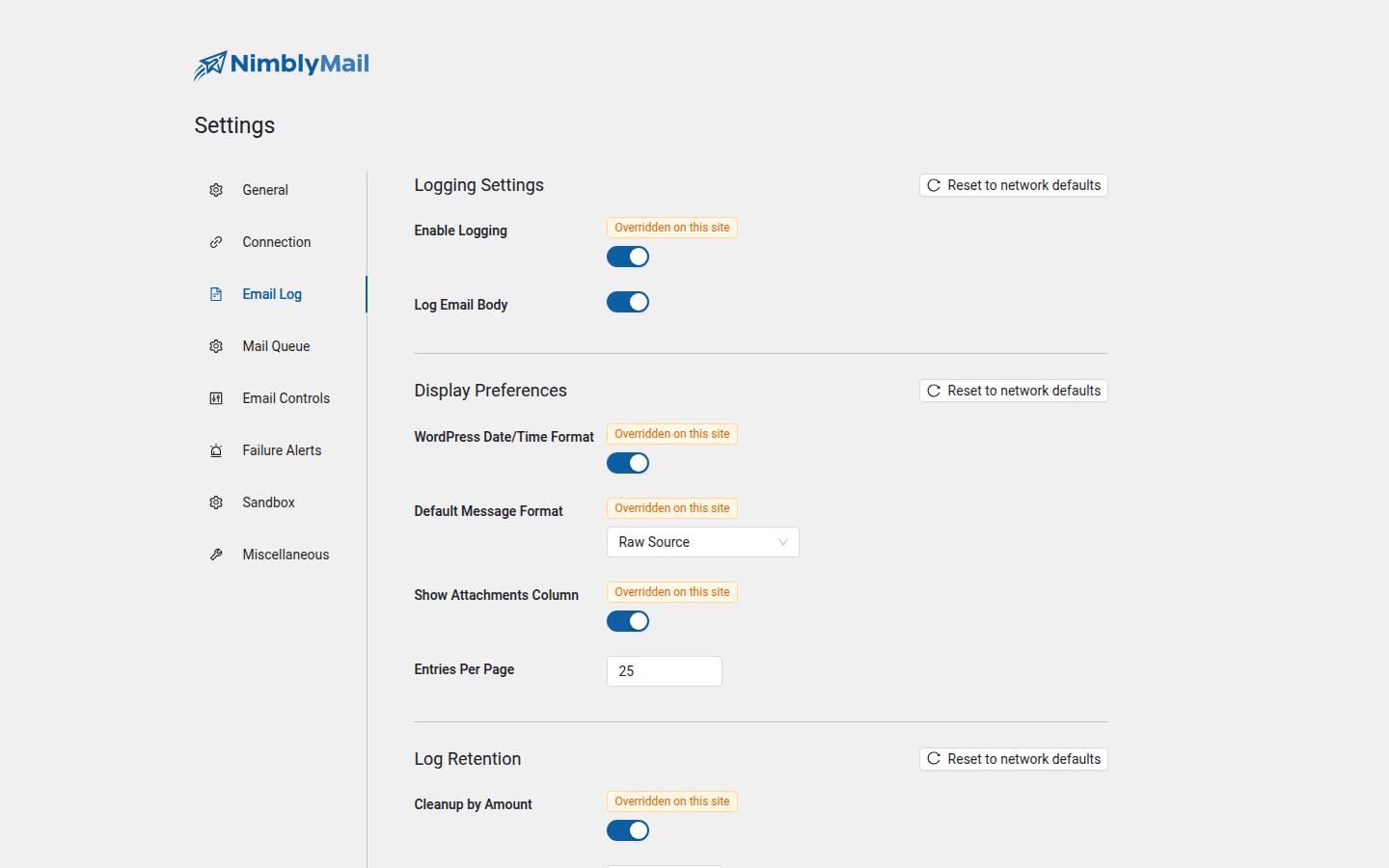
Logging Settings
| Field | Description |
|---|---|
| Enable Logging | Master toggle. Turn logging on or off entirely. |
| Log Email Body | When enabled, stores the full email body (HTML and plain text). Disable to reduce database usage. |
Disable Log Email Body on high-volume sites where storage is a concern. Metadata (recipient, subject, status, duration) is always logged regardless of this setting.
Display Preferences
These settings control how log entries appear in the log viewer.
| Field | Description |
|---|---|
| WordPress Date/Time Format | Use your site’s configured date and time format instead of the NimblyMail default. |
| Default Message Format | How the email body is displayed: HTML (rendered), Raw (source), or JSON. |
| Show Attachments Column | Display a column in the log table showing attachment file names and counts. |
| Entries Per Page | Number of log entries shown per page. Accepts values between 5 and 100. |
Log Retention
Without retention rules, the log table grows indefinitely. Configure one or both cleanup methods to keep the database size manageable.
| Field | Description |
|---|---|
| Cleanup by Amount | Automatically delete the oldest log entries when the total count exceeds the limit. |
| Maximum Logs | The maximum number of log entries to keep. Visible only when Cleanup by Amount is enabled. |
| Cleanup by Time | Automatically delete log entries older than a specified number of days. |
| Delete After (Days) | The retention period in days. Visible only when Cleanup by Time is enabled. |
Tip: Enable both retention methods for comprehensive cleanup. For example, keep a maximum of 5,000 entries and delete anything older than 90 days. Cleanup runs once daily via WordPress cron.