
Brevo (formerly Sendinblue) is a transactional email API. NimblyMail talks to it over HTTPS — no SMTP, no port 25/587 to worry about.
When to use Brevo
- You already use Brevo for marketing or contact management and want transactional WordPress mail to flow through the same account.
- You want a generous free tier (Brevo’s free plan currently includes 300 emails/day across marketing + transactional).
- You want a single API key instead of OAuth dances or SMTP credentials.
Setup
- Generate an API v3 key at https://app.brevo.com/settings/keys/api. Click Generate a new API key, give it a name (for example "NimblyMail — sitename"), and copy the key. Keys begin with
xkeysib-. - Verify your sender domain at https://app.brevo.com/senders/domain/list. Add the DNS records Brevo provides (DKIM CNAME, DMARC, optional Brevo-code TXT). DNS verification is required before Brevo will accept mail from your domain.
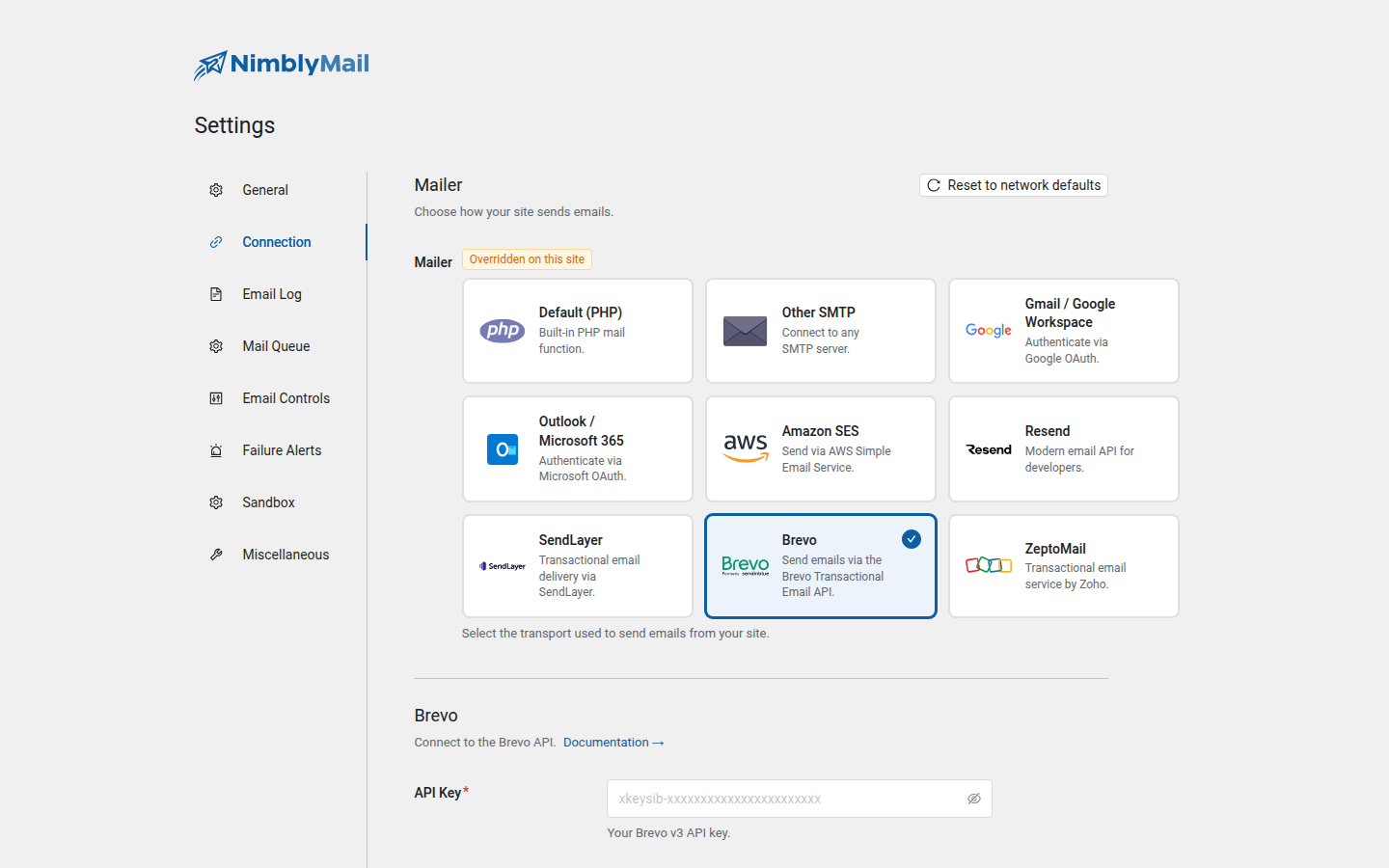
- In WordPress, go to NimblyMail > Settings > Connection and select the Brevo card.
- Paste your API key into the API Key field.
- Click Save Changes.
- Use NimblyMail > Tools > Email Tester to send a test email and confirm delivery.
API endpoint
NimblyMail sends every email via HTTPS POST to:
https://api.brevo.com/v3/smtp/emailThe request body contains the email envelope (from, to, cc, bcc, replyTo, subject), HTML/text content, and any attachments. The API key travels in the api-key header.
What gets stored
| Field | Storage |
|---|---|
brevo.api_key |
DB (encrypted at rest, AES-256-CBC + HMAC-SHA256). Masked as ******** when displayed in the admin UI; un-mask via PHP constant override (see below). |
Locking the API key via wp-config.php
Define the constant in wp-config.php to lock the key as read-only in the admin UI and source it from the file rather than the database:
define( 'NIMBLY_MAIL_BREVO_API_KEY', 'xkeysib-...' );Troubleshooting
400 "unauthorized" — API key invalid or missing the transactional permission.
400 "sender_not_authorized" — The "From Email" you configured under Settings > General does not match a sender you’ve verified in Brevo. Either change From to a verified sender, or add it under Senders > Senders, Domains & Dedicated IPs > Add a Sender.
402 "credits exhausted" — You’re out of monthly credits on the free plan. Upgrade or wait until the monthly reset.
Delivery is slow / queued at Brevo — Brevo throttles new accounts during a warm-up period. Sustained healthy sending raises the limits automatically.